

Driver’s Desk
How to Set Up Geofencing: Vehicle Security Guide
You park on a dim side street, lock the car, and walk away. The alarm is armed, but that only helps after someone breaks in, tows the car, or starts moving it. The same tension shows up when you hand the keys to a teenage driver, leave a vehicle with a mechanic, or store a weekend car in a garage you don't fully trust.
Geofencing changes that equation. Instead of waiting for obvious damage or a loud siren, you create a virtual perimeter and get notified when the vehicle crosses it. For security, that matters because unauthorized movement often starts before a thief has done enough to trigger a traditional alarm.
That idea isn't limited to private car owners. Managers use geofencing to control vehicle access, jobsite movement, and after-hours use across larger operations. If you're responsible for electric vehicles across a property or hospitality operation, this EV fleet guide for resort managers gives useful context on location-based oversight and day-to-day control. For personal anti-theft use, the same principle applies on a smaller scale and with higher urgency.
A modern setup works best when geofencing is part of a broader car security system, not a standalone gimmick. You want location awareness, movement alerts, and rules that match how the car is used. Done right, geofencing gives you earlier warning and fewer surprises.
Beyond the Alarm: Proactive Security with Geofencing
A car alarm reacts to an event. Geofencing helps you catch movement before the situation gets that far.
That distinction is the reason many first-time users end up relying on geofences more than they expected. If your vehicle leaves your driveway at an unusual hour, exits a storage lot, or arrives somewhere it shouldn't, the key signal isn't broken glass. It's location change.
Geofencing works best when you treat it as a perimeter rule, not a novelty map feature.
For everyday owners, the first useful question isn't which app button to tap. It's this: what movement would worry you enough to want an immediate alert? For many owners, the answer is one of three things:
- Home departure at the wrong time: You want to know if the car leaves overnight or while you're traveling.
- Unexpected arrival somewhere risky: You want visibility if the vehicle enters an unfamiliar or restricted area.
- Movement during handoff periods: A teen driver, valet, shop, or transporter has the car, and you want accountability without constant checking.
Those are practical use cases because they tie alerts to real decisions. Call the driver. Check whether the car was borrowed. Confirm whether a tow was authorized. Escalate fast if none of that makes sense.
A weak setup sends notifications every time the vehicle crosses any line on the map. A strong setup only interrupts you when location data means something operationally important. That difference runs through every step in how to set up geofencing well.
Geofencing Foundations for Vehicle Security
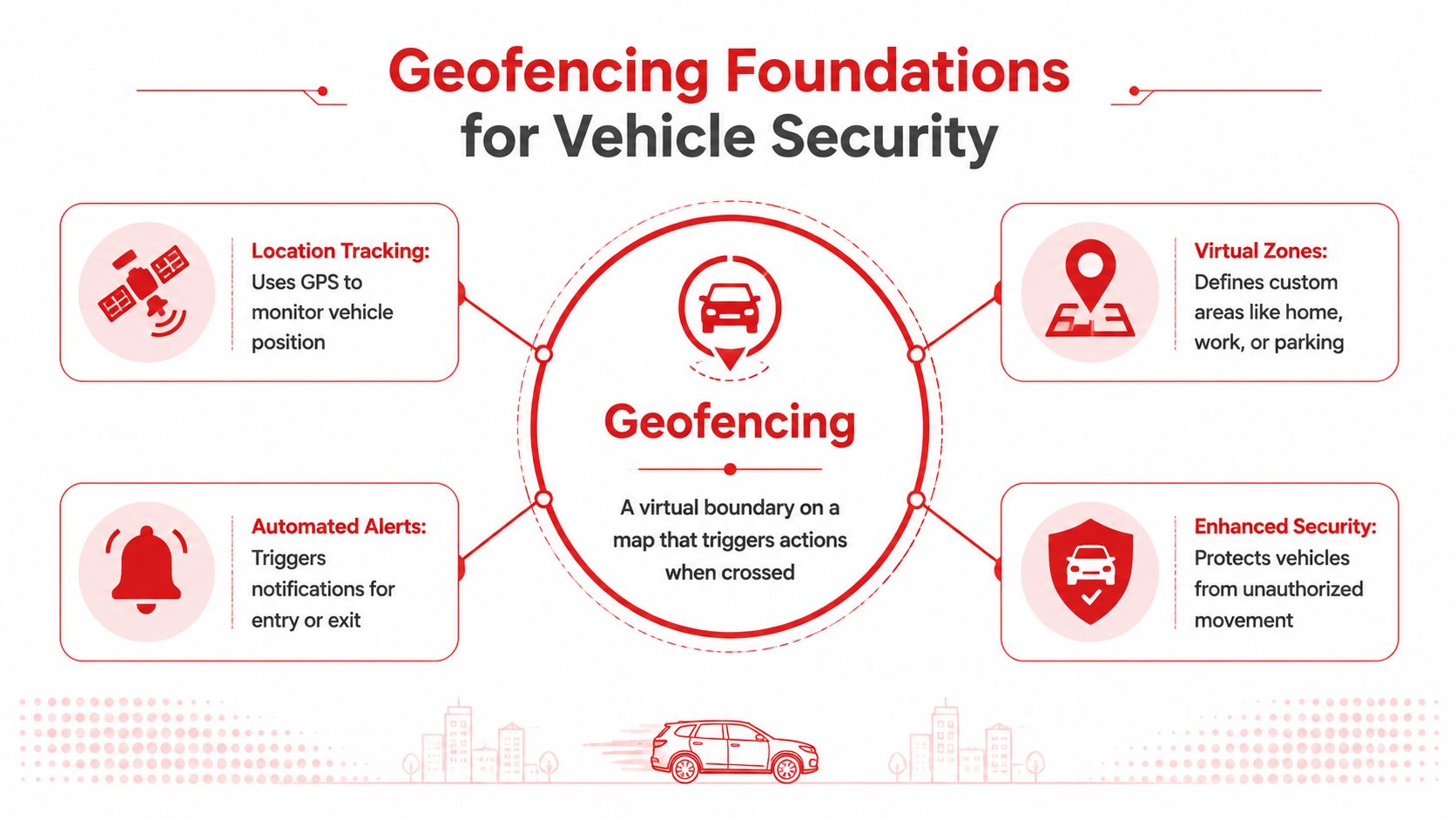
Geofencing is a simple concept. You draw a virtual boundary on a map, and the system triggers an action when the tracked device enters or exits that area. In vehicle security, that action is usually an alert, a log entry, or both.
What powers the fence
Most geofencing systems use a mix of GPS, Wi-Fi, cellular data, and sometimes Bluetooth to estimate where the device is. That sounds precise until you put a car in practical conditions. Underground garages, dense urban blocks, rural roads, and battery-saving phone settings all affect how well the system can determine the vehicle's precise location.
One design constraint matters a lot for security work. Adjust's geofencing overview notes that cellular-based geofencing is often accurate within a few hundred meters, which is fine for broader zones but not for tight vehicle-perimeter security. That's why GPS-based tracking is the better fit when you're trying to detect specific unauthorized movement.
Why the pin can look wrong
New users often assume the map dot equals the exact parking spot. It doesn't always.
Android's geofencing documentation explains that Wi-Fi positioning is usually about 20 to 50 meters, indoor accuracy can be as small as 5 meters, and in rural or no-Wi-Fi conditions location error can degrade to several hundred meters or even kilometers in some cases, which is why fence size has to match the environment rather than your idealized property line. See the Android geofencing guidance for the technical detail behind that behavior.
Practical rule: The tighter the fence, the more you depend on stable signal conditions. Garages, tall buildings, and rural areas all push you toward larger buffers.
That doesn't mean geofencing is unreliable. It means you shouldn't draw a tiny circle around a driveway entrance and expect perfect timing in every environment.
What users actually need to understand
Before you build anything, keep these trade-offs in mind:
- Broad zones are more forgiving: They're useful for city blocks, business parks, and general-area alerts.
- Tight zones need better positioning: For driveway, garage, and lot-level monitoring, map shape and device quality matter more.
- App permissions matter as much as map design: If the system can't check location in the background, the fence won't help when the car is sitting still and then starts moving.
- Alerts need a purpose: If every entry and exit triggers a push notification, you'll start ignoring the one that mattered.
If you're evaluating tracker hardware and app behavior, review the core CarLock device features with those constraints in mind. The right question isn't whether geofencing exists. It's whether the system can support security-grade monitoring under the conditions your vehicle encounters.
Your First Geofence: Securing Your Home Base
Your first geofence should be Home. Not work. Not the gym. Not every place you visit in a week.
Home is where a personal vehicle spends the most unsupervised time, where overnight theft risk is easiest to define, and where a clean alert is most actionable. If the car leaves when it shouldn't, you know immediately that something is off.
Start with shape, not just address
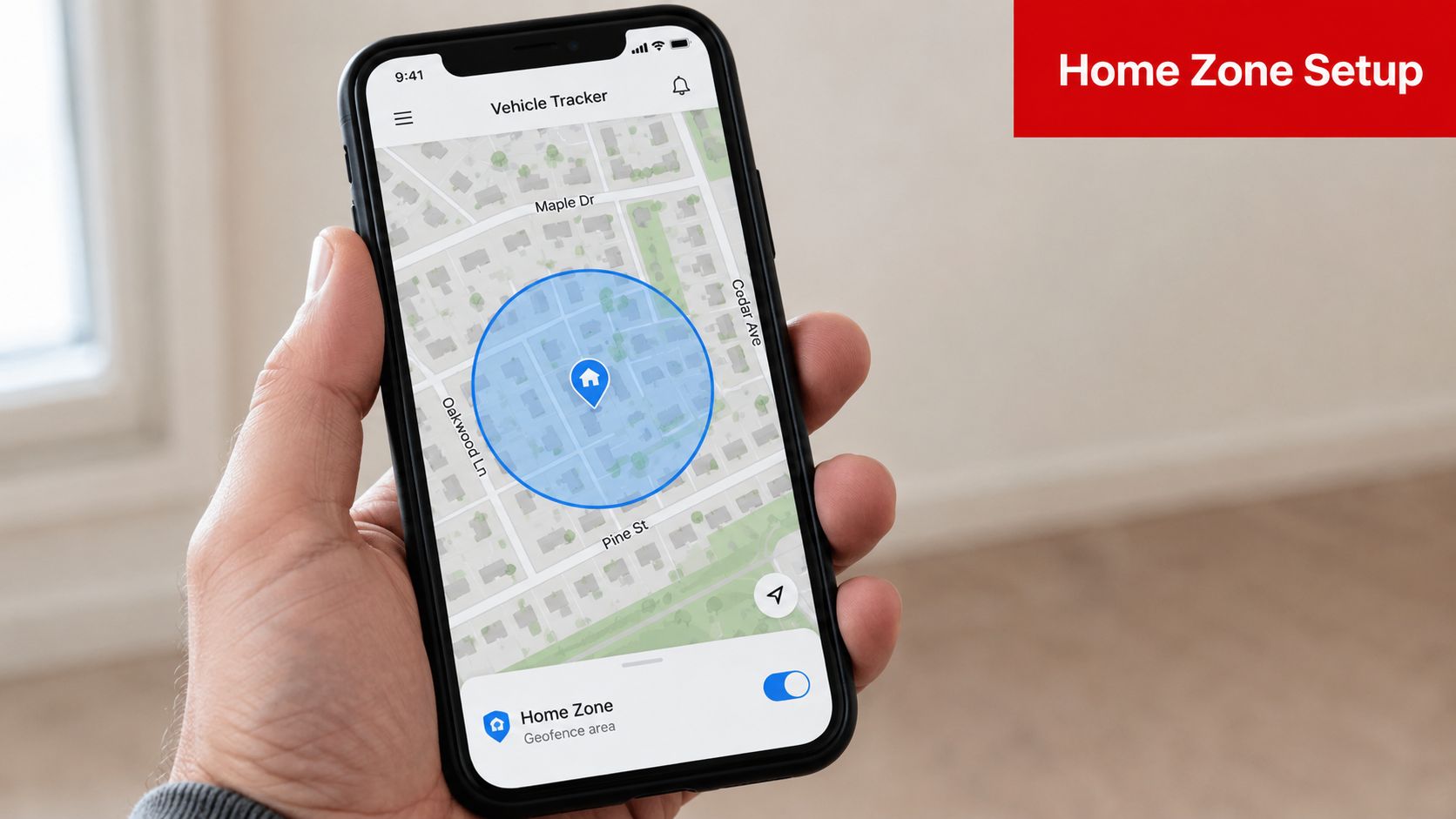
Many apps make it easy to drop a pin and draw a circle. That's fine for a first draft, but it often creates the exact problem that frustrates new users. The circle spills into the road, the neighbor's driveway, or the alley behind the house. Then you get alerts while the vehicle is just idling, parking, or turning around.
For a reliable setup, GPS Insight recommends starting with 10 to 25 key locations, drawing boundaries that match actual vehicle entry and exit points, using satellite view where needed, and testing for one week before expanding. That advice comes from fleet operations, but it's just as useful for personal anti-theft setup because false triggers usually come from sloppy fence placement, not from the idea of geofencing itself.
If your app supports polygon zones, use them for a driveway, garage lot, or irregular property edge. If it only supports circles, give yourself enough margin that normal parking behavior doesn't brush the boundary.
A practical home setup
Here's the sequence that works well for a first fence:
- Name the zone clearly: Use "Home" or "Home Garage," not something vague you'll forget later.
- Switch to satellite view if the map is unclear: This helps when property lines, access roads, or shared lots are hard to read.
- Trace where the car enters, parks, and exits: Don't draw to the legal parcel line if that's not how the vehicle moves.
- Keep nearby public roads out of the zone: Most bad alerts happen because the fence touches traffic flow.
- Save the alert rule and live with it for a week: Watch for false exits before adding more locations.
For people mapping unusual properties, service yards, or access points with poor addressing, this guide on designing access and data for autonomous sites is useful because it shows how to work more precisely with map coordinates when the default pin isn't enough.
What a good first week looks like
You don't need dozens of zones to learn how to set up geofencing well. You need one zone that behaves predictably.
A successful first week usually means:
- Alerts happen when the car leaves or arrives
- You don't get repeated notifications from normal parking movement
- The fence doesn't trigger from passing traffic
- The zone name makes immediate sense on your phone
If you're using a platform with a vehicle location view, a car locator page or map history can help you compare where the vehicle traveled against where the fence fired.
After you've watched the fence through normal use, add a second location only if it solves a real problem.
A quick visual walkthrough helps here:
A home geofence isn't "set and forget." Trees, street parking habits, shared driveways, and app settings all affect whether it stays useful.
Customizing Geofences and Smart Notification Rules
One home fence is a good start. A useful security setup usually needs a small network of zones with different rules.
The mistake is treating every location the same. School isn't home. A workplace garage isn't a storage unit. A shopping center you visit once a week shouldn't produce the same urgency as your car leaving a private lot after midnight.
Build by scenario, not by map clutter
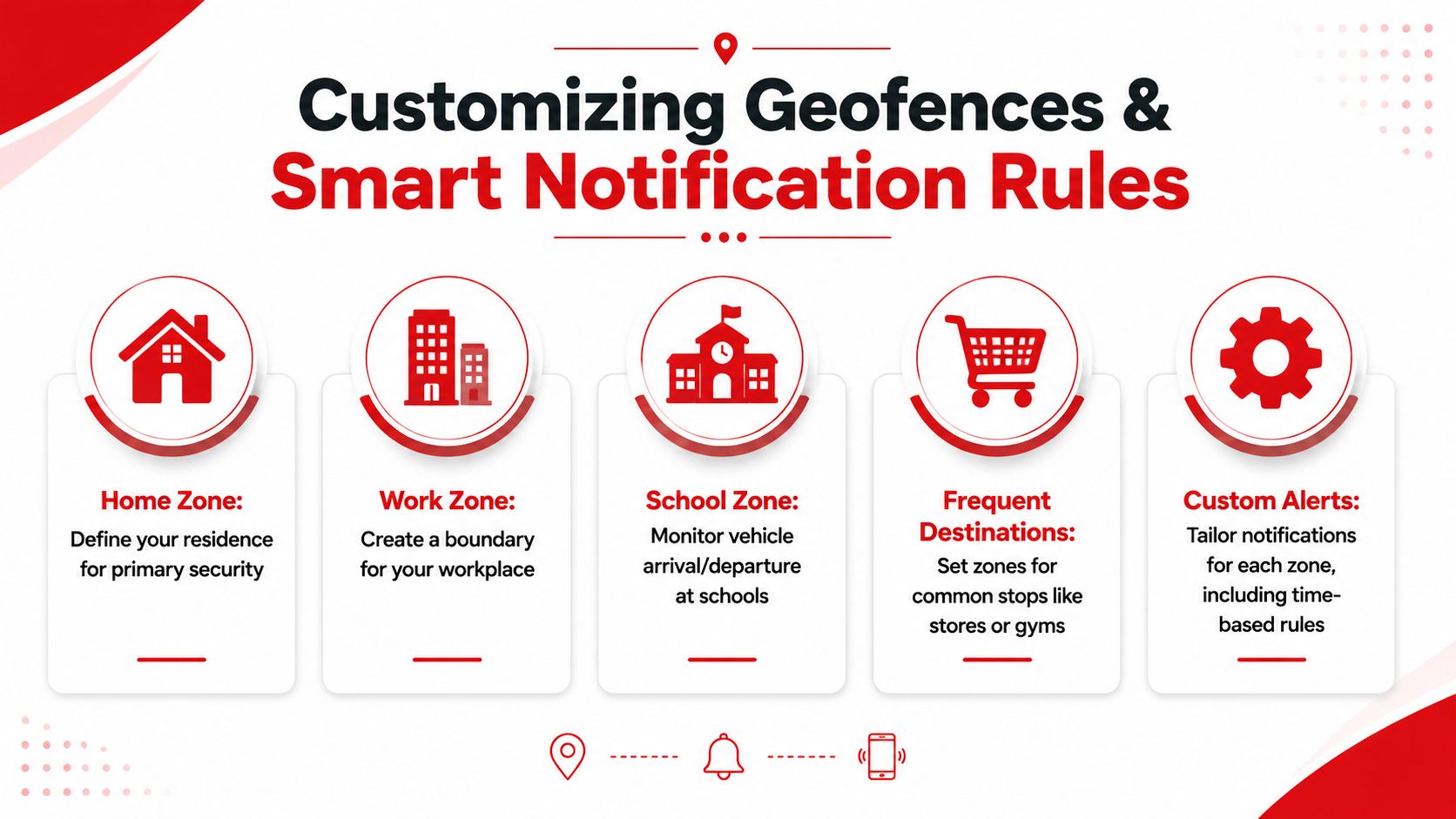
The best way to expand is to assign each geofence a job. Think in terms of safe zones, supervised zones, and exception zones.
| Zone type | Typical example | Best alert style |
|---|---|---|
| Safe zone | Home, main garage, private storage | Exit alerts, especially after hours |
| Supervised zone | School, workplace, depot | Arrival and departure logs or selective alerts |
| Exception zone | High-risk area, restricted district, unauthorized stop area | Immediate alert on entry |
That structure prevents random expansion. Every zone either protects the vehicle, confirms expected movement, or warns you about the wrong movement.
Use time rules to cut the noise
Geofencing gets ignored when it reports ordinary behavior all day long. If a teenager drives to school every weekday, you don't need the same urgency at 8:05 a.m. that you'd want at 11:40 p.m. If a company van leaves a depot during business hours, that's normal. If it moves on Sunday night, that deserves a push alert.
The strongest setups turn geofencing into a policy system. Arrival at home may not need a notification. Exit from home after hours probably does. Entry into a service area during a scheduled appointment may be fine. Exit from that area far later than expected may not be.
Dwell time is where many setups start working
Some users think the fence is broken because it fires too often. The actual issue is that the system is reacting to transient location movement instead of meaningful movement.
A better rule is to add delay before an event counts. In the verified implementation guidance provided for this topic, setting DwellTime to at least 120 seconds is described as critical to reduce notification spam from GPS fluctuations, and polygon mapping can reduce buffer-zone errors by up to 60% when securing specific lots or garages. That's why a circle around a parking deck often feels noisy while a carefully drawn polygon feels much more usable.
If the vehicle only skirts the edge of a zone, pauses in traffic, or drifts on the map for a moment, the alert shouldn't own your attention.
The CarLock app features are relevant here because app-side alert handling is where users feel the difference between useful geofencing and constant interruption. The fence shape matters, but the notification logic matters just as much.
Three setup recipes that work in real life
Parent monitoring
Use Home and School first. Make home departures after late evening more important than routine school arrivals. If the teen parks near the edge of campus, use a broader zone rather than trying to isolate a single row of parking spaces.
Enthusiast or collector vehicle
Use a tight garage or storage-lot fence if your setup supports precise mapping. Add a second broader neighborhood fence only if the first one is stable. For vehicles that sit for long periods, the first useful alert is often unauthorized departure, not a log of every movement.
Daily driver in a high-theft area
Start with home and workplace. If workplace parking is underground or surrounded by tall buildings, expect more drift and choose a less aggressive radius. Add exception-based alerts for after-hours movement rather than notifying on every commute event.
A simple rule hierarchy
When users ask how to set up geofencing without drowning in alerts, this is the hierarchy I recommend:
- Highest priority: Unexpected exit from a trusted location
- Second priority: Entry into a location that should be rare or unauthorized
- Third priority: Confirmation events, like school arrival or depot entry
- Lowest priority: Routine commute movements that don't require intervention
If you build in that order, your alerts stay tied to decisions you can make.
Troubleshooting Common Geofencing Issues
Most geofencing complaints fall into two buckets. It didn't trigger, or it triggered when it shouldn't have.
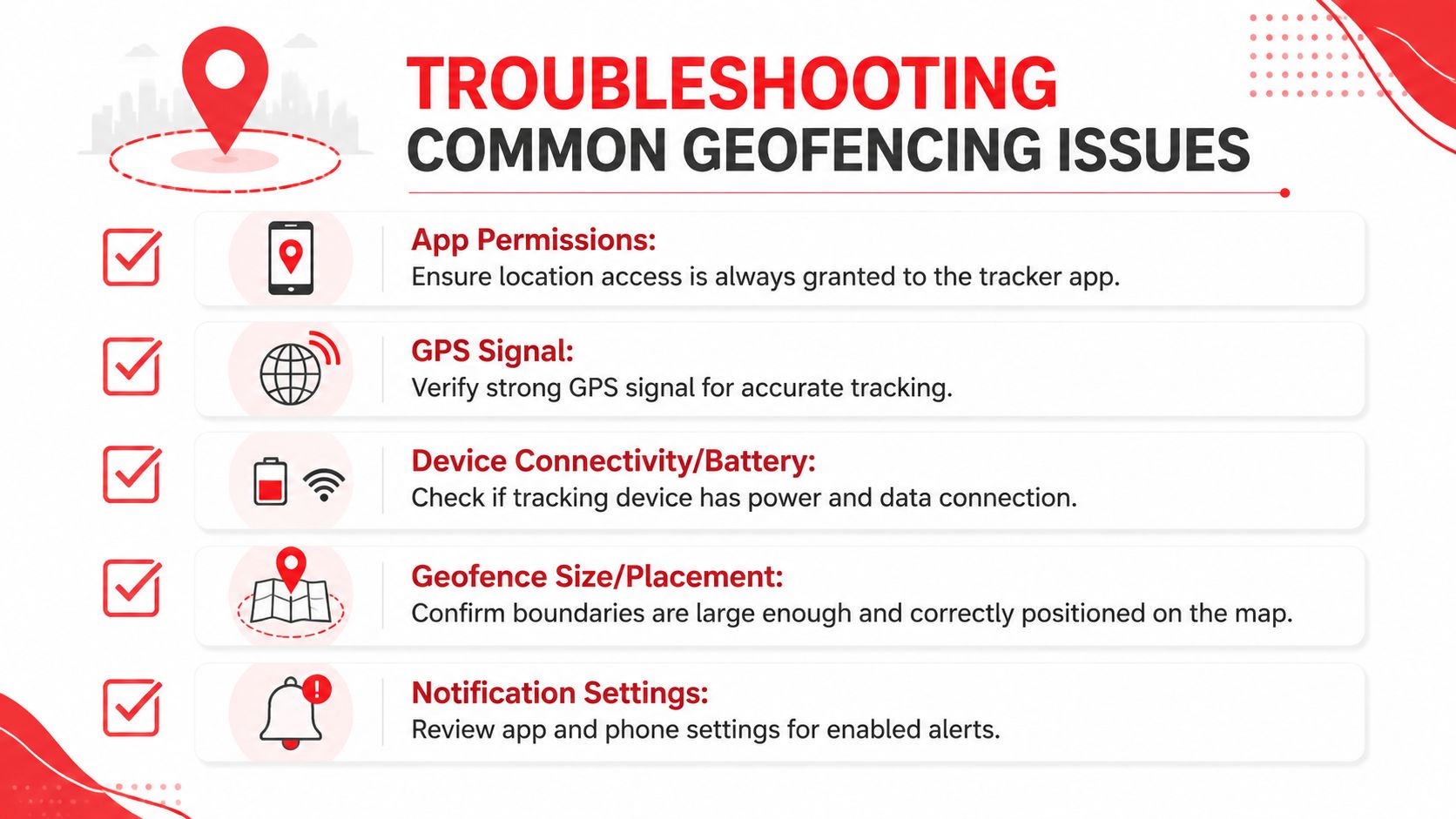
Both are usually fixable. The key is to diagnose the setup in the same order the system works: permissions, signal quality, fence design, then notifications.
When the alert never arrives
One failure point stands above the rest in app-based geofencing. In the verified data for this article, 90% of geofencing failures in detecting tampering events when an engine is off are caused by missing Background Location permissions during setup. If the app can't monitor location in the background, the phone may stop checking position at the exact moment you need it.
That means troubleshooting should start with permissions, not with redrawing the map.
Use this checklist:
- Confirm background location access: On mobile-tracked setups, the app needs persistent location permission, not just access while open.
- Check device power and connectivity: If the tracker or phone loses data connection or power, the fence can only react late or not at all.
- Review phone-level notification settings: Silent app notifications often look like missed geofence events.
- Look at recent trip history: If there was no recorded movement, the problem may be tracking continuity rather than the fence itself.
When the alert is wrong
False alerts usually come from mismatched fence size or placement. A zone that sits too close to a road, lot entrance, or garage wall will fire on normal movement. In weak signal conditions, the map location can wobble enough to mimic a crossing event even though the car hasn't meaningfully changed position.
The fix isn't always "make it smaller." Often it's the opposite. Move the boundary away from traffic edges, reshape it to match the lot, or enlarge it to fit the environment.
Small fences fail for boring reasons. The map looks neat, but the real world isn't neat.
The test most users skip
Before you trust any geofence for theft response, validate it with an actual crossing. The verified guidance for this topic recommends a simulated movement test by physically crossing the boundary to confirm that the event triggers before deployment.
A useful test routine is simple:
- Leave the vehicle inside the zone long enough to settle.
- Drive out through the path the car normally uses.
- Wait for the alert and note the timing.
- Re-enter and confirm the return event if that rule is enabled.
- Adjust the zone if the trigger happens too early, too late, or while still inside the property.
Do that twice, not once. A single successful test can hide inconsistent behavior caused by signal conditions at that moment.
A root-cause view
| Symptom | Likely cause | Best fix |
|---|---|---|
| No alert while parked vehicle moved | Background location not enabled | Recheck permission settings and retest |
| Exit alert fires while idling near edge | Fence too tight or too close to road | Widen or reshape boundary |
| Alerts arrive late in garage or dense city area | Weak positioning conditions | Use a larger buffer and retest timing |
| Too many notifications in one place | No dwell logic or poor zone hierarchy | Limit alerts to exceptions and longer presence |
Geofencing is rarely one-tap accurate on the first try. But once you fix the main failure point, it becomes much more dependable.
Advanced Geofencing for Parents and Fleet Managers
The most effective geofence setups don't notify everyone about everything. They notify the right person when movement breaks a rule that matters.
Rastrac's guidance on geofencing setup highlights a practical reality: real-world geofencing often needs different rules for different people and times, and the best setups reduce alert fatigue by focusing on exceptions, such as after-hours movement, instead of every boundary crossing. That's exactly how security-minded users should think about advanced geofencing.
Parent setup that stays useful
Parents usually need reassurance, not surveillance theater. The simplest useful recipe is:
- Home zone: Alert on late-night exits or unusual departures
- School zone: Log arrival and departure, but don't treat every school-day crossing as urgent
- Friend or activity zone: Add only if there's a recurring supervision need
If every school pickup, practice stop, and coffee run creates a push alert, you'll tune it out. If the car leaves home during restricted hours or never reaches school when it should, that deserves attention.
Small fleet setup that supports control
For a small business, geofencing becomes an operations rule. Depot, jobsite, and after-hours storage each need different treatment.
A practical pattern looks like this:
- Depot: Notify on unauthorized exits outside work hours
- Job sites: Record arrival and departure to confirm use, but reserve push alerts for exceptions
- Restricted service area: Trigger when a vehicle enters somewhere it shouldn't be
If you manage more than one vehicle, vehicle tracking for cars and fleets then becomes more than location visibility. It becomes a way to separate ordinary business movement from suspicious use.
High-value vehicle recipe
Owners of collector cars, modified vehicles, and cars stored off-site should use a stricter logic stack:
- A precise storage or garage fence
- An immediate alert for unauthorized exit
- Limited routine notifications elsewhere
- Fast escalation if movement happens at an odd hour or from a known storage location
This is also the one place in the article where it's worth naming a product directly. CarLock supports geozone-based monitoring in a vehicle security workflow, which is useful when you want location boundaries paired with movement, tamper, and tracking visibility rather than relying on geofencing alone.
Advanced geofencing works when it reflects real authority. Who should know, when should they know, and which movements are actually suspicious?
The common thread across parents, enthusiasts, and fleet managers is simple. The fence is not the goal. The goal is a rule that helps you act faster when the vehicle's movement stops making sense.
If you're ready to build geofences that help with theft prevention and day-to-day vehicle awareness, start with a system designed for real vehicle security. CARLOCK combines GPS tracking, movement alerts, tamper notifications, and app-based monitoring so you can turn simple map boundaries into practical security rules.