

Driver’s Desk
GPS Tracking with Google: A Free Car Tracking Guide
You want to know where your car is. Maybe it's parked in a huge lot, maybe a teenager is driving it, or maybe you're trying to build a basic anti-theft setup without paying for hardware yet. That's usually what people mean when they search for gps tracking with google.
Google can help, but only in a narrow sense. If you leave a phone in the vehicle and set it up correctly, Google Maps location sharing, Find My Device, and Timeline can give you a useful picture of where that phone has been. That can be enough for casual monitoring and occasional peace of mind.
It is not the same thing as a real vehicle security system. The difference matters most when the situation gets stressful, because that's when power loss, bad signal, underground parking, app permissions, and phone-based limitations stop being small inconveniences and start becoming the exact gaps a thief can exploit.
The Appeal and Reality of Free GPS Tracking
The free setup sounds simple because it is simple. Put a spare Android phone in the car, sign in to Google, turn on location features, and use your own phone to check where the car is. For normal situations, that can work well enough. You can check whether a family member arrived, confirm where the car was parked, or review where it went later.
That appeal is real. It costs little, it uses apps many people already know, and it doesn't require drilling, wiring, or a separate tracking contract. If you're experimenting before buying dedicated hardware, it's a reasonable starting point.
The important part is understanding what Google built these tools to do. Google's help content focuses on improving the blue dot for navigation and phone location, not on securing a vehicle against theft or tampering. That's the core gap. Google's own Maps help is about device location accuracy, while vehicle trackers are built around continuous monitoring and tamper alerts for an asset, not just a lost phone, as shown in Google Maps location accuracy help.
Practical rule: A phone in a car can help you locate the phone. It doesn't automatically give you vehicle-grade security.
That distinction changes how you should use this method. A Google-based setup makes sense if your goal is:
- Basic visibility: See whether the phone in the car is still where you expect.
- Family coordination: Share a live location during errands or a trip.
- Trip review: Check where the vehicle was later.
It starts to break down if your goal is:
- Theft recovery
- Tow detection
- Tamper alerts
- Reliable tracking when the phone is unplugged, hidden badly, or loses signal
If you're trying to avoid monthly cost, it's worth reading this broader look at a GPS car tracker with no monthly fee so you can compare free and low-cost approaches realistically.
Using Google Maps Location Sharing for Live Tracking
For live monitoring, Google Maps Location Sharing is the easiest Google tool to set up. The usual DIY method is to leave a spare phone in the vehicle, keep it signed in, and share that phone's location to your main Google account.
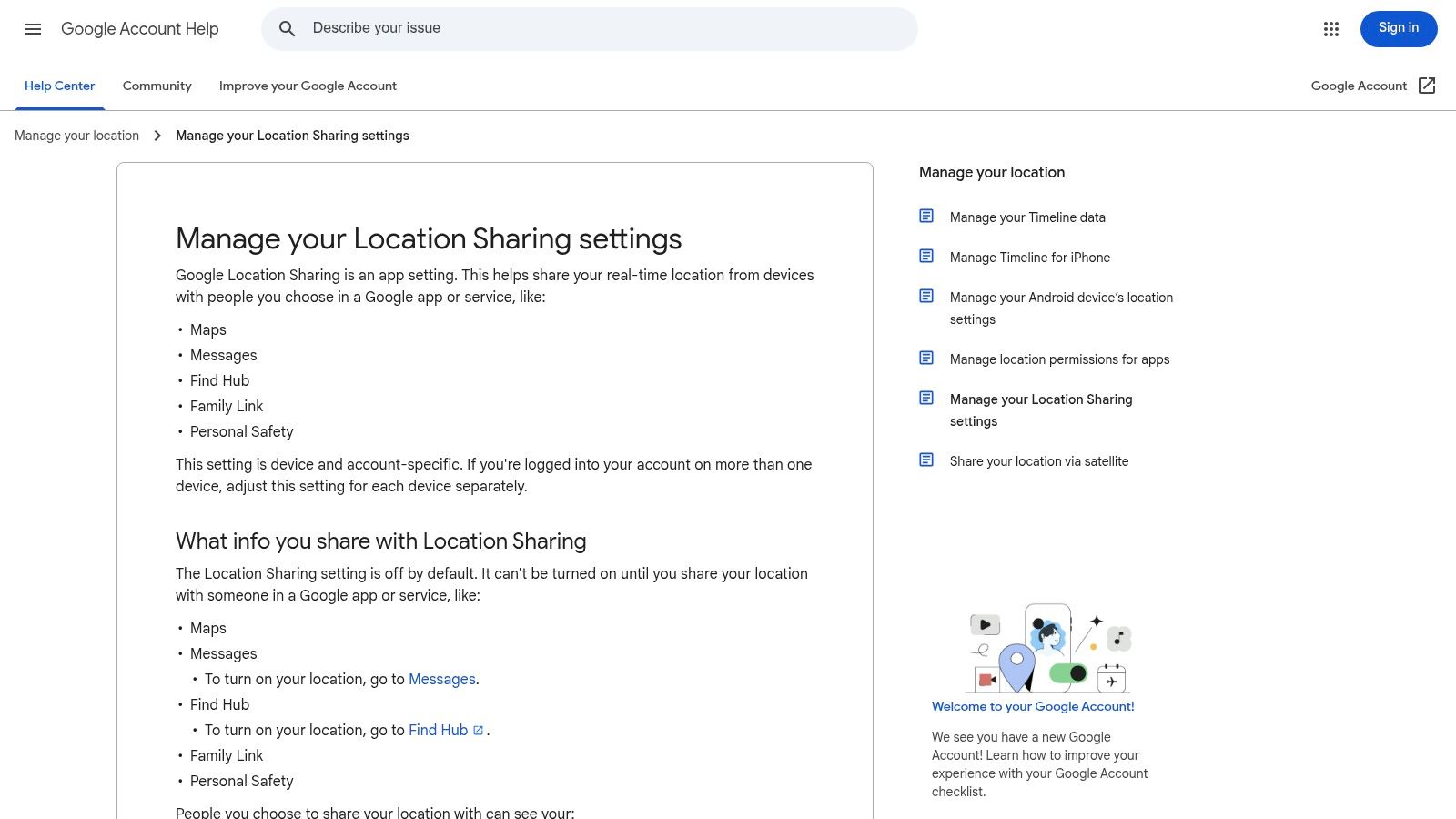
Set up the phone that stays in the car
Start with a phone that has:
- Its own data connection: Wi-Fi alone won't be enough once the car leaves home.
- Constant charging: Use a reliable car charger. If the phone dies, your tracking dies with it.
- Location enabled: The phone must be allowed to use location services all the time, not only while the app is open.
- Screen lock and account access you control: You don't want to lose access to the device later.
Then on that phone:
- Open Google Maps.
- Tap the profile picture.
- Tap Location sharing.
- Choose Share location.
- Set the duration to the longest available option, ideally the setting that keeps sharing on until you stop it.
- Share to your main Google account, or to a trusted person who needs to monitor the vehicle.
If you're using an old spare phone, also check battery optimization settings. Many phones restrict background activity aggressively. If Google Maps gets put to sleep, the shared location may stop updating or update late.
Make the setup usable in real driving
A lot of failed DIY tracking setups come from small details, not from the map itself.
Use this checklist before you rely on it:
- Mount or hide the phone securely: If it slides under a seat and disconnects from power, the setup becomes unreliable fast.
- Keep charging continuous: Cheap adapters often stop delivering stable power during bumps or temperature swings.
- Disable restrictive power saving for Maps: The phone should allow background location access.
- Test while driving: Don't assume it works because it looked fine in the driveway.
A good walkthrough on phone-based setups is this guide to GPS tracking by mobile phone.
View the shared location on your own phone
Once sharing is active, open Google Maps on your main phone while signed into the receiving account. You should see the shared device on the map. This gives you the closest thing Google offers to live vehicle tracking using only free consumer tools.
The workflow is simple:
- Open Google Maps on your main device
- Check the shared account or person
- Tap the shared location
- Review current position and movement if the phone is updating properly
This is also where people discover the limits. If the spare phone has weak cellular signal, enters battery saver mode, gets turned off, or is removed from the car, the map can lag behind reality.
Here's a video that helps if you want to see the general sharing flow visually:
Leave the phone where it can keep signal and power, but not where it's obvious to anyone who looks inside the car.
That last point matters. A visible phone is easy to steal, easy to disable, and easy to remove from the vehicle altogether. At that point, you're tracking the phone's path, not the car's.
Using Find My Device and Timeline for Past Routes
You walk out to the street, and the car is gone. In that moment, Google can help answer two narrow questions. Where was the phone last seen, and where has it been before? That is useful, but it is not the same as having a theft-focused tracker that keeps reporting from the vehicle itself.
Use Find My Device for a last known position
If the phone in the car is signed into your Google account, Find My Device can show its current location when the phone is reachable, or its last known location when it is not. For a car owner, that makes it a recovery clue, not a live security feed.
Use it like this:
- Sign into the same Google account tied to the phone in the car.
- Open Find My Device on another device or in a browser.
- Select the car phone from your device list.
- Check the map for the latest reported location.
- Note the time of that update before you act on it.
That timestamp matters. A stale location can send you to the right neighborhood but the wrong parking row, garage level, or side street. If a thief powers the phone off, removes it from the car, or drops it in a different location, Find My Device follows the phone's story, not the vehicle's.
Turn on Timeline before you need it
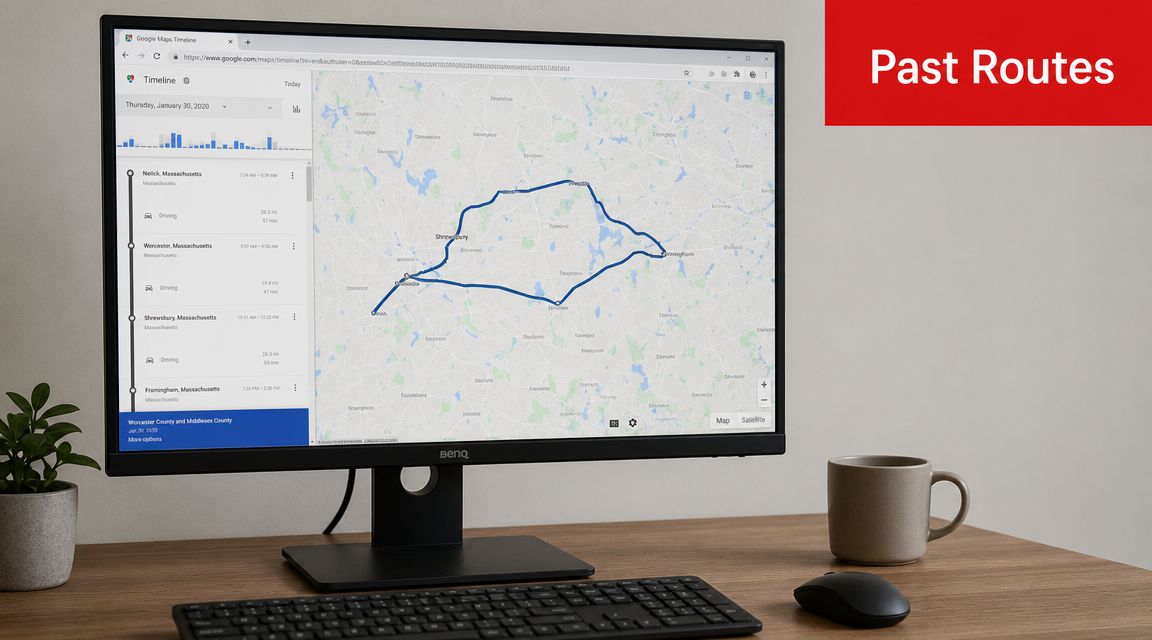
Timeline is the part of Google Maps that can show where the phone traveled earlier. It only helps if it was enabled in advance and the phone kept collecting location history during those trips.
Set it up on the phone that stays in the car:
- Open Google Maps.
- Tap the profile picture.
- Open Your timeline.
- Follow the prompts to turn Timeline on, if Google has not already prompted you.
- Leave location services enabled on that phone and let it build history over time.
Later, you can return to Timeline to review stops, routes, and approximate travel patterns.
Timeline works best as a record after the fact. I would use it to confirm whether a car was moved, check where it stopped, or retrace a previous parking location. I would not rely on it for immediate theft response, because route history depends on the phone keeping power, permissions, and a usable connection long enough to save that trip.
What this method does well, and where it falls short
Find My Device answers, "Where did Google last see this phone?" Timeline answers, "Where does Google believe this phone traveled earlier?" Those are different jobs, and both have gaps that matter in real theft cases.
This setup is most useful for:
- Checking a last known phone location after the fact
- Reviewing earlier routes and stops
- Confirming whether the car appears to have moved
- Finding a previous parking area
It is weak for:
- Immediate movement alerts
- Reliable tracking if the phone is unplugged or removed
- Situations where a thief spots the device first
That is why I treat Google as a starting point. It gives you a free way to gather clues, but thieves take advantage of the weak points. They kill power, remove the handset, or drive into places where phones report poorly. If you want to see how a vehicle-focused approach differs, this article on car tracking that feels like GPS on steroids is a useful comparison.
Understanding the Real-World Limitations
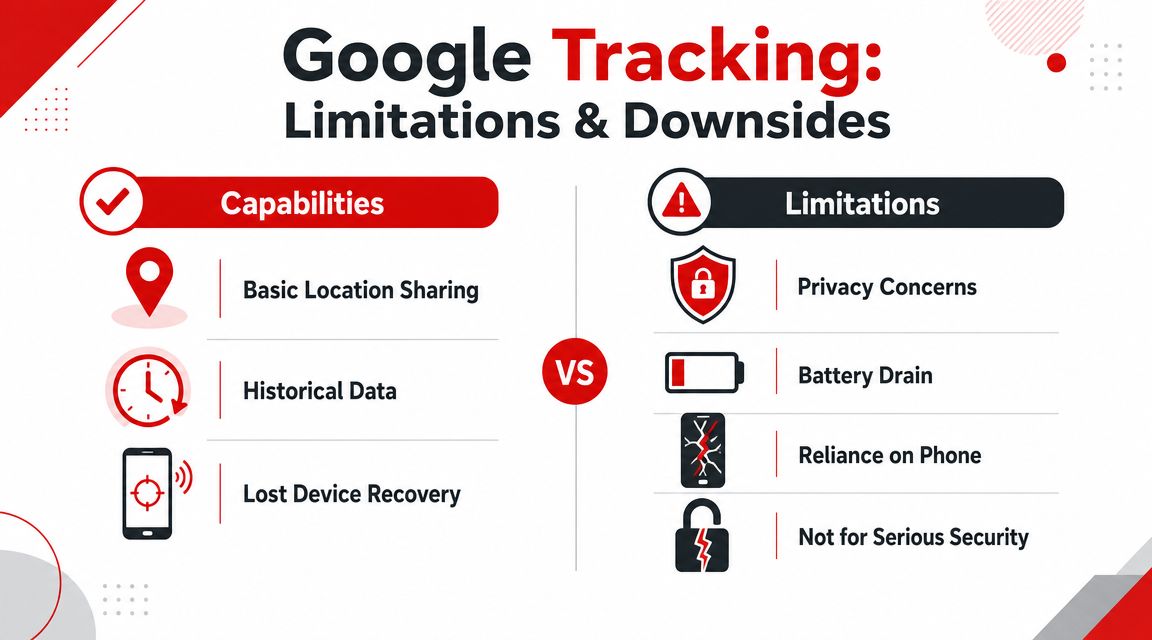
A car gets moved at 2 a.m. You open Google, see a pin, and assume you have the car's exact position. That assumption causes trouble. With phone-based tracking, the pin reflects whatever location data the phone can gather and transmit at that moment. In a real theft situation, that can be good enough to give you a direction. It is not the same as a purpose-built vehicle tracker giving consistent, vehicle-focused reporting.
Accuracy changes with the environment
Google tracking depends on the phone's sensors, satellite visibility, nearby networks, and signal conditions. In an open parking lot, the result may be close enough to identify the right row of cars. In a downtown corridor, multi-level garage, or concrete structure, the reported position can drift enough to waste time. In theft recovery, time matters.
The practical problem is not that Google is always wrong. The problem is that the error changes by location, and you usually learn that after the car is already gone.
A few patterns show up often:
- Garages reduce confidence: Concrete and low ceilings interfere with clean positioning.
- Dense city blocks create pin drift: Tall buildings can push the reported position off the actual street or parking spot.
- Phones do not give vehicle-grade placement: You may get the general area, not a precise vehicle location.
Power is usually the first weak point
A spare phone hidden in a car sounds simple until you depend on it for a week, then a month, then a hot summer. Cables loosen. USB adapters fail. Older batteries swell, drain fast, or shut off under load. If the phone stops charging for even part of the trip, your tracking chain starts to break.
That is one reason I call Google a starting point, not a security setup. A thief does not need to defeat advanced hardware if the tracking device is a visible phone plugged into a dashboard port. Unplug it, remove it, or let it die, and your visibility is gone.
Connectivity gaps are easy to exploit
Google can only report what the phone can send. Underground parking, rural dead zones, metal structures, and low-signal industrial areas can interrupt updates at the exact moment you need them. Some theft crews do this on purpose. Others get the same result just by driving into places where phones report poorly.
Interference is also a real issue. If you want to understand how intentional signal disruption affects vehicle tracking, this explanation of a GPS blocker in a car shows the kind of weakness a free phone-based setup has to deal with.
Free Google tracking usually fails in ordinary, predictable ways. The phone loses power, loses signal, loses permissions, or gets removed from the car.
Privacy is part of the trade-off
There is another cost people often miss. Using Google's location features can create a travel record tied to a personal account. For some owners, that is acceptable. For others, it raises a different security question. If someone gets into that Google account, they may see where the vehicle has been, where it is usually parked, and patterns tied to daily life.
That does not make the method a bad idea. It makes it a limited one. Google can help you check on a car with tools you already have, but it leaves clear gaps in accuracy, power resilience, and signal reliability. Those are the exact gaps thieves use.
Troubleshooting Common Google Tracking Issues
When Google tracking fails, it's usually one of a handful of predictable problems. The fastest way to fix it is to diagnose the setup like a technician, not like a map user.
Location isn't updating
Why it happens
The phone may have lost mobile data, entered battery saver mode, or stopped allowing Google Maps to run in the background. A charger connection that looks fine can also be intermittent.
What to do
- Check mobile data first: If the phone has no active data connection, sharing can't stay current.
- Inspect charging hardware: Replace weak cables and adapters before blaming the app.
- Review app permissions: Make sure location access is allowed all the time, not only when the app is open.
- Disable aggressive battery optimization: Many Android phones restrict background updates unless you exclude the app manually.
Location is inaccurate
Why it happens
The car may be in an area with poor satellite visibility, heavy buildings, or weak fallback signals. A phone tossed in a console or under metal clutter can also perform worse.
What to do
- Move the phone higher in the cabin: It usually gets a cleaner signal near glass than buried under seats.
- Turn on Wi-Fi and location services: Even if the phone isn't connected to a local network, Wi-Fi scanning can help positioning.
- Calibrate the phone if needed: Compass and location calibration can improve behavior in Maps.
- Test outdoors before changing everything: If it works outside but not in a garage, the environment is the issue.
Sharing stopped unexpectedly
Why it happens
The account may have signed out, the user may have changed sharing settings, or the operating system may have revoked permissions after an update.
What to do
- Open Google Maps on the in-car phone.
- Confirm the correct Google account is still signed in.
- Recheck Location sharing settings.
- Verify the receiving account still has permission to view the device.
- Restart the phone if settings look correct but updates still stall.
If the setup failed once, retest it before you trust it again. A tracking method you haven't rechecked is just an assumption.
Timeline is missing trips
Why it happens
Timeline may be off, the phone may have had location disabled, or the account may not have stayed signed in consistently.
What to do
- Confirm Timeline is enabled
- Keep the account signed in
- Make sure location stayed on during the trip
- Avoid swapping accounts on the same device
The pattern here is simple. Google tracking works best when the phone behaves like a stable in-car device. Most phones aren't designed to live that way for long.
When Google Isn't Enough The Case for a Dedicated GPS Tracker
A true vehicle tracker is not just a phone with a map app. The underlying system is different from the start. A proper setup uses a GPS module, a cellular modem, a dedicated power connection, and a back-end server that processes data and sends alerts to an app, which is why it's built for continuous monitoring rather than casual phone sharing, as explained in this article on how a real GPS tracking stack works.
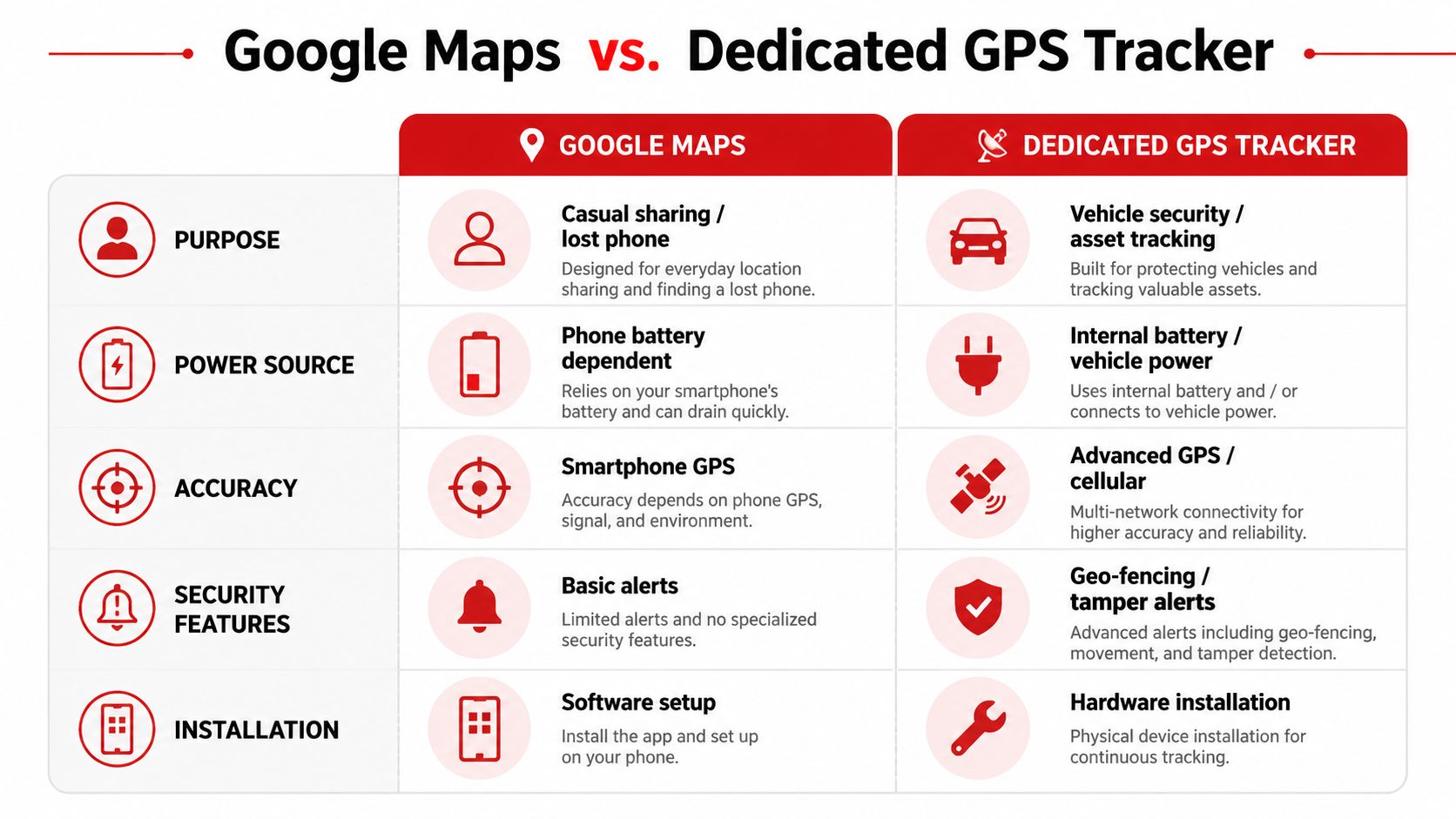
That difference changes what you get in practice. With a dedicated tracker, you're not relying on an old phone staying charged, staying signed in, and staying hidden. You're using hardware designed to remain with the vehicle and report on the vehicle.
What separates a tracker from a phone in a glove box
A dedicated unit is built around one job. It isn't sharing your friend's ETA or helping you find a misplaced handset.
That usually means:
- Independent monitoring: The tracker stays focused on the vehicle, not on someone's personal phone habits.
- Vehicle power integration: It doesn't depend on a spare phone battery surviving a hot car.
- Purpose-built alerts: Movement, engine activity, disconnection, and tampering become part of the system design.
- App plus backend logic: The platform can process events and notify you, not just display a dot.
For people who also think about personal safety outside the vehicle context, an app like MERGENCY APP FOR SOLO TRAVELERS can be a useful companion resource. It solves a different problem, but it reflects the same principle: passive location tools and purpose-built safety systems are not the same thing.
Side by side comparison
| Feature | GPS Tracking with Google (Phone in Car) | Dedicated GPS Tracker (e.g., CarLock) |
|---|---|---|
| Purpose | Casual sharing, lost phone recovery, route review | Vehicle monitoring and security |
| Hardware | Spare smartphone | Dedicated tracking hardware |
| Power source | Phone battery and car charger | Dedicated power connection to the vehicle |
| Connectivity | Depends on the phone's account, settings, and data | Built around ongoing GPS and cellular reporting |
| Alerts | Limited and indirect | Purpose-built movement and tamper alerts |
| Reliability | Vulnerable to unplugging, battery loss, and app restrictions | Built for continuous tracking logic |
| Best use | DIY visibility and occasional checks | Real anti-theft monitoring and vehicle oversight |
A product such as CarLock fits into that second category. It is a vehicle-focused tracker and security system that reports location in real time and sends alerts when the car moves, starts, is tampered with, or the device is disconnected. That is entirely different from trying to repurpose Google tools into a security stack.
If you're comparing options, this explanation of a real-time GPS tracking device is a useful next read because it focuses on what changes once the hardware is designed for the car instead of borrowed from a phone.
The practical takeaway is straightforward. Use Google if you want a free starting point and you understand the compromises. Move to a dedicated tracker if the vehicle matters enough that late updates, dead batteries, and missing alerts aren't acceptable.
If you want a purpose-built option, CARLOCK offers real-time GPS vehicle tracking with smartphone alerts for movement, engine starts, tampering, and trip history. It's designed for vehicle security rather than phone sharing, which makes it the better fit when peace of mind depends on reliable alerts.